Change Shape - Rectangular/Circular
Introduction
Sometimes the automatically determined shape of an opening does not match your project requirements. For example, fire classification rules may require a rectangular opening even though the reference element (e.g. a round duct) would normally produce a circular one. The Rectangular/Circular command lets you switch an opening's shape without deleting and recreating it.
The changed shape is preserved during future updates, as long as the reference element's dimensions remain unchanged. If ConVoid detects a dimensional change on the reference element, it will recalculate and may reset the shape. To prevent this, you can use the "Exclude from conVoid" parameter (see Exclude Elements).
Video Tutorial
Change Shape
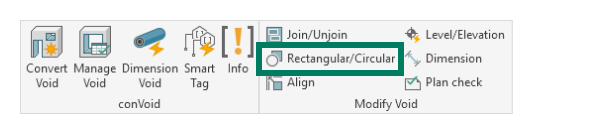
To change the shape of one or more openings:
- Select one or multiple openings in your model.
- Click [Rectangular/Circular] in the [conclass] Ribbon tab. The selected openings will switch their shape.
Do not change the opening family manually in the Revit Properties panel. ConVoid will not recognize the change if you swap the family type directly. Always use the [Rectangular/Circular] button in the [conclass] Ribbon tab.
When you change the shape of an opening, Revit may remove dimension annotations that reference the opening, because the underlying geometry changes. After changing shapes in bulk, check your annotated views and re-apply dimensions or tags where needed. You can use Automatic Dimensions and Smart Tag to re-annotate efficiently.