Automatic Dimensions and Section Views
Instead of placing dimensions and section views manually, ConVoid lets you dimension an entire wall - including its openings, intersecting walls, grids, and MEP elements - with a single click. This also works for walls in linked models.
Video Tutorial
Overview
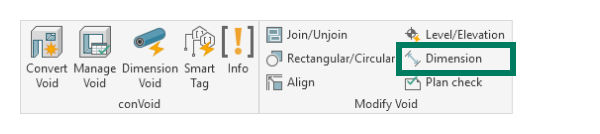
Navigate to the Conclass tab in the Revit ribbon and click Dimension. The dialog provides four commands on the left and the reference options on the right:
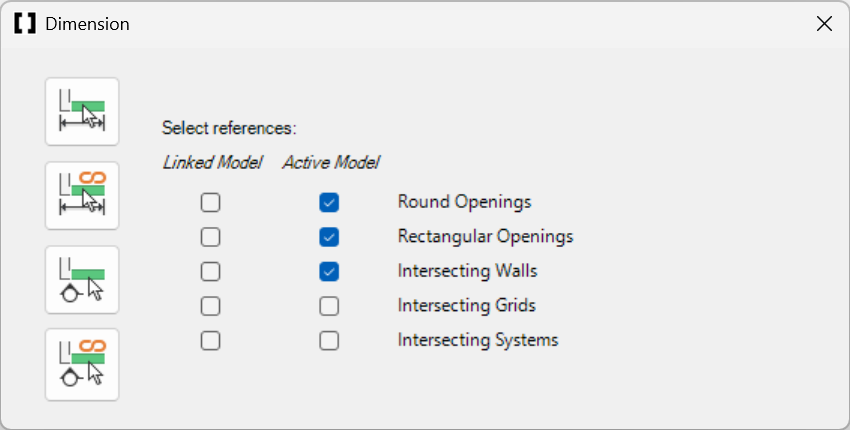 | |
| Place dimensions on wall → | |
| Place dimensions on linked wall → | |
| Create section view for wall → | |
| Create section view for linked wall → | |
Automatic Dimension
Configure References
The dialog is divided into two columns of checkboxes: Linked Model (for references from linked files) and Active Model (for references in your current project). Select which references to include in the dimension string:
| Reference Type | Description |
|---|---|
| Round Openings | Includes the host wall and its round openings in the dimension string. |
| Rectangular Openings | Includes the host wall and its rectangular openings in the dimension string. |
| Intersecting Walls | Includes walls that intersect the selected host wall. A multi-segmented dimension string is generated automatically. |
| Intersecting Grids | Includes grids that intersect the wall's centerline at a perpendicular angle. |
| Intersecting Systems | Includes MEP elements that intersect the selected host wall. |
Quick Deselect
Right-click in the dialog to deselect all checkboxes at once.
Place Dimensions
- Enable the desired reference types in the dialog.
- Click Place dimensions on wall (or Place dimensions on linked wall for linked models).
- Hover the cursor over a wall until it highlights.
- Click to place the dimension string automatically.
- Continue selecting additional walls as needed.
- Press [ESC] to end the command.
Automatic Section View
- Click Create section view for wall (or Create section view for linked wall for linked models).
- Hover the cursor over a wall until it highlights.
- Click to place the section view automatically.