Update Openings
As your project evolves, MEP elements get repositioned, linked models receive new versions, and doors or windows change size. Simply rerun ConVoid. It detects what changed and updates all affected openings automatically.
After the update process, review the result summary. Check that the number of created, changed, and deleted elements makes sense. If the results look unexpected (e.g. too many openings marked as deleted), undo the update immediately with Ctrl+Z and review your filter settings before running again.
Complete at least one of the following workflows before updating:
- Workflow A: Create Openings for MEP services
- Workflow B: Adopt Openings from linked Provision for Voids
- Workflow C: Create Structural Openings from linked doors and windows
Video Tutorial
- Workflow A: Create Openings
- Workflow B: Adopt Openings
- Workflow C: Create Structural Openings
How Updating Works
ConVoid compares each opening with its reference element (duct, pipe, linked opening, door, or window). If it detects a mismatch in position or size, it updates the opening.
To stop ConVoid from touching a specific opening at all (position, size, and oversize), enable the "Exclude from conVoid" parameter on that opening. The opening gets frozen and is skipped in every future run.
When a change is detected, ConVoid updates:
- Location and Dimensions (Width, Height, Length, Depth, Diameter)
- Shape, Levels, Oversize values, and Rounding-up values
- Transferred Parameters
When no change is detected, only Transferred Parameters are refreshed. All other values stay as they are, even if you changed ConVoid settings (such as oversize or rounding) since the last run.

The dimension parameters of ConVoid families (Width, Height, Length, Depth, Diameter) reflect the size of the reference elements. If you change these values manually, ConVoid will interpret the mismatch as a change and overwrite your edits on the next run. Use the oversize parameters instead, see Sizing and Oversizing.
If you adjust oversize values manually after creation (for insulation, fire protection, or discipline-specific requirements), enable the "Preserve Oversize" parameter on the opening. ConVoid will keep your oversize values during future updates while still tracking position and reference size. See Sizing and Oversizing.
To change oversize, rounding-up values, levels, or shape on openings that ConVoid considers up-to-date, use the tools in the Modify Void tab. See Manual Placement and Modification.
Drawing Status
Every opening is assigned a Drawing Status reflecting its current state. This status is always the authoritative indicator and takes precedence over individual changelog entries.
| Status | Meaning |
|---|---|
| Created | The opening was first generated during an automatic run. |
| Changed | The opening was repositioned or resized during the latest update. This will not appear when openings are changed manually. |
| Up to Date | No geometric changes detected. Only Transferred Parameters were refreshed. |
| Deleted | ConVoid could not find the host or reference element. The opening remains in the project for you to verify. ConVoid never removes elements automatically. See Deleted Openings below. |
| Excluded | The "Exclude from conVoid" parameter is enabled. ConVoid skips this opening in all future runs. |
| Manually | The opening was copied or placed by hand. |
By default, ConVoid resets the approval status of changed openings to "Pending". To keep the approval status unchanged, disable "Reset approval status on changes" in Advanced Settings.
Deleted Openings
ConVoid never automatically deletes openings. It only sets the Drawing Status to "Deleted" so you can verify before taking action.
Why no automatic deletion? A linked model might be temporarily unloaded or a filter setting changed by mistake. Marking instead of deleting prevents accidental data loss.
When an opening is marked "Deleted", only the Drawing Status changes. The Approval Status stays the same. Because the Approval Status filter has higher priority, an approved opening marked "Deleted" still displays in its approval color (e.g. green) until you manually update or remove it.
Review Changes
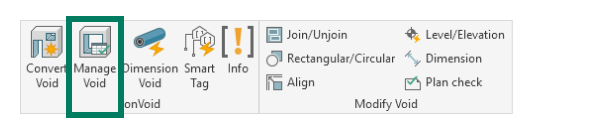
ConVoid logs all changes during creation and update runs. Use Manage Void to review them.
Applying a Color Filter
Color filters let you quickly identify each opening's status in your view:
- Set your View Template to <None>, otherwise ConVoid cannot apply the filter.
- Click the Colorfilter button in the ConVoid Manager.
- Adjust the status colors using the color boxes. Colors apply in both the schedule and the active view.
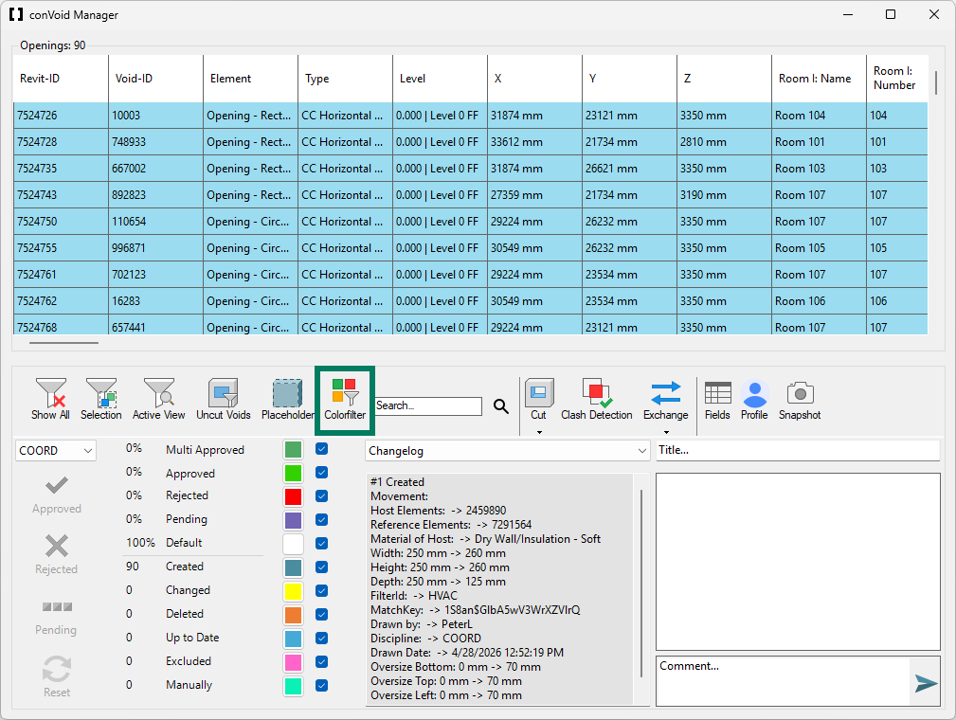
An opening may show "Deleted" in the changelog history but carry a Drawing Status of "Up to Date" if it was re-detected in a later run. Always rely on the Drawing Status, not the changelog, for the current state.
Tracking Across Model Versions
ConVoid uses a multi-level tracking algorithm that does not fully depend on the GUID. Even if linked openings are recreated with new GUIDs (for example, when scripts delete and recreate elements), ConVoid still recognizes previously adopted openings.
When openings are deleted and recreated in the source model, ConVoid treats them as new elements and the changelog history is lost. Ask your project partners to move openings instead.
Verify Your Results
After running an update:
- Open the ConVoid Manager (Workflows A and B) or select individual openings (Workflow C) and review the changelog.
- Apply the Colorfilter to spot changed, new, or deleted openings at a glance.
- Pay special attention to openings marked as Deleted. Verify they are no longer needed before removing them.
- Confirm that Transferred Parameters are correct.