Join and Unjoin Openings
Introduction
Sometimes multiple openings are placed close together and should be combined into a single, larger opening. The Join/Unjoin feature lets you merge openings manually or by a predefined distance. This is useful when the automatic join distance during creation or updating did not cover all cases, or when you need to combine openings after the fact.
In this chapter you will learn two methods: joining selected openings manually, and joining all openings within a set distance across your project or view.
Video Tutorial
Join Openings Manually
To combine specific openings into one, select them and click Join/Unjoin in the [conclass] ribbon tab.
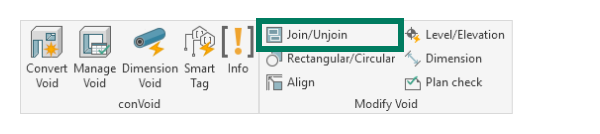
ConVoid will merge the selected openings into a single combined opening. The original openings are not deleted. Instead, they are marked as Placeholder and remain in your model.
After joining, the original openings become Placeholders. They look like leftover elements, but ConVoid needs them as a reference. If you delete them, ConVoid will recreate new openings inside the combined opening the next time you run an update.
Placeholders are automatically hidden in 2D views (floor plans, sections). To hide them in 3D, open the Revit Visibility/Graphics settings of your view and hide the subcategory "CC Clash".
To unjoin a combined opening, select it and click Join/Unjoin again. The combined opening will be removed and the Placeholder openings will return to their original state.
Join Openings by Distance
To join all openings within a certain distance across your project or the current view, deselect all elements in your model and click Join/Unjoin. A dialog window will appear.
- Choose whether to join openings in the current view or the entire project.
- Set the distance at which openings should be joined.
- Select the filters for which openings should be considered.
- Click [Join Openings].
ConVoid will join all openings that match the filters and are within the specified distance.
When you set an approval status or add comments to a combined (joined) opening, this information is not automatically passed down to the Placeholder openings. Other disciplines reviewing the individual Placeholders may not see the status changes.
To review or comment on individual Placeholders, open the ConVoid Manager (Manage Voids) and click Placeholders to list them in the table. From there, you can select, comment, and approve Placeholders individually.