Save and Load Settings
Introduction
ConVoid automatically saves all your settings inside the Revit project. This means your colleagues working in the same model already have access to your settings without any manual steps.
Settings are stored inside the Revit project file, not centrally or via the cloud. Each project has its own independent configuration. Even if you import settings from another project, you should always verify that they match your current model structure.
If you want to use your ConVoid settings in a different project, export them as a *.xml file and import them into the new project.
This chapter covers two separate setting areas, each with its own XML file:
- ConVoid Settings - Opening Filters for creating, adopting, or converting openings
- Dimension Void Settings - Oversizing rules applied after openings are created
Save and Load ConVoid Settings
| Save all Opening Filters in a *.xml file and use them in other projects. | |
| Import an existing Opening Filter into your project from a *.xml file. |
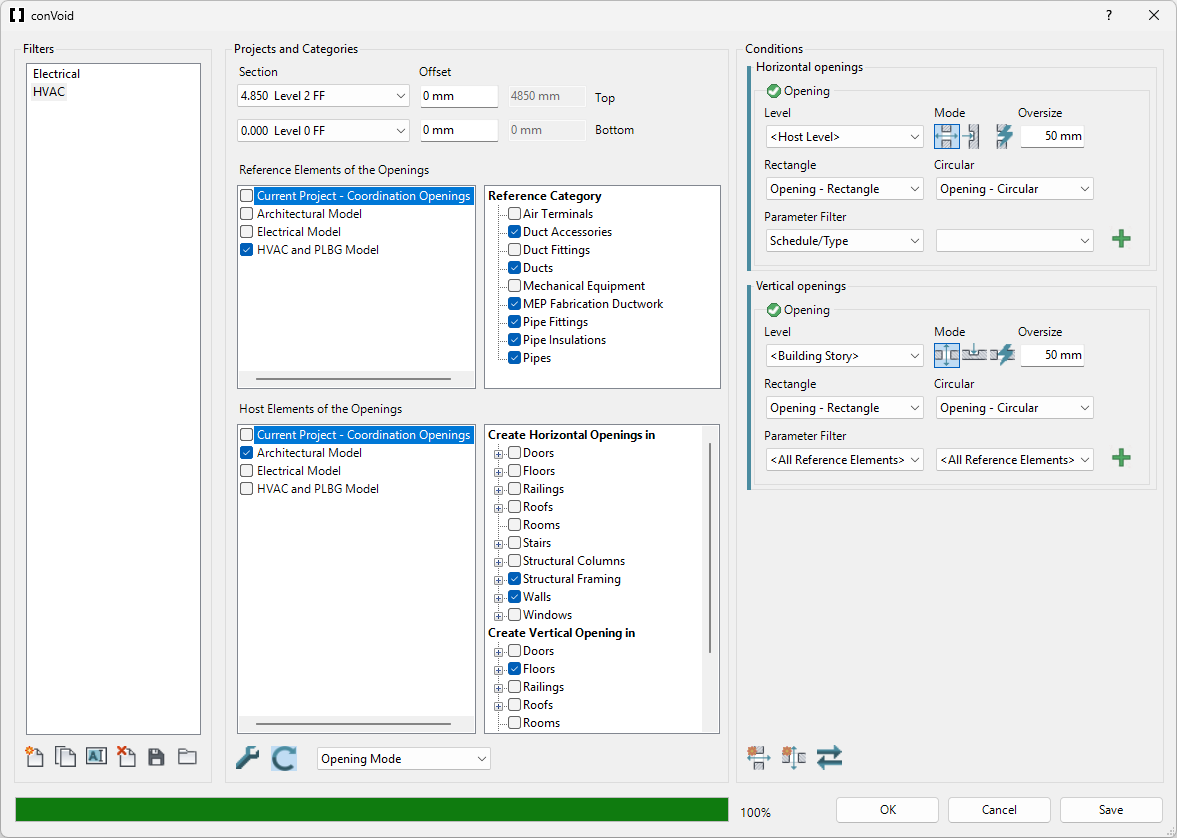
Imported filters may reference linked models, categories, or parameters that do not exist in your current project. After importing, open each filter and verify the configuration matches your model structure before running a calculation.
Save and Load Dimension Void Settings
| Save all Dimension Void configurations in a *.xml file and use them in other projects. | |
| Import Dimension Void configurations from an existing *.xml file into your project. |
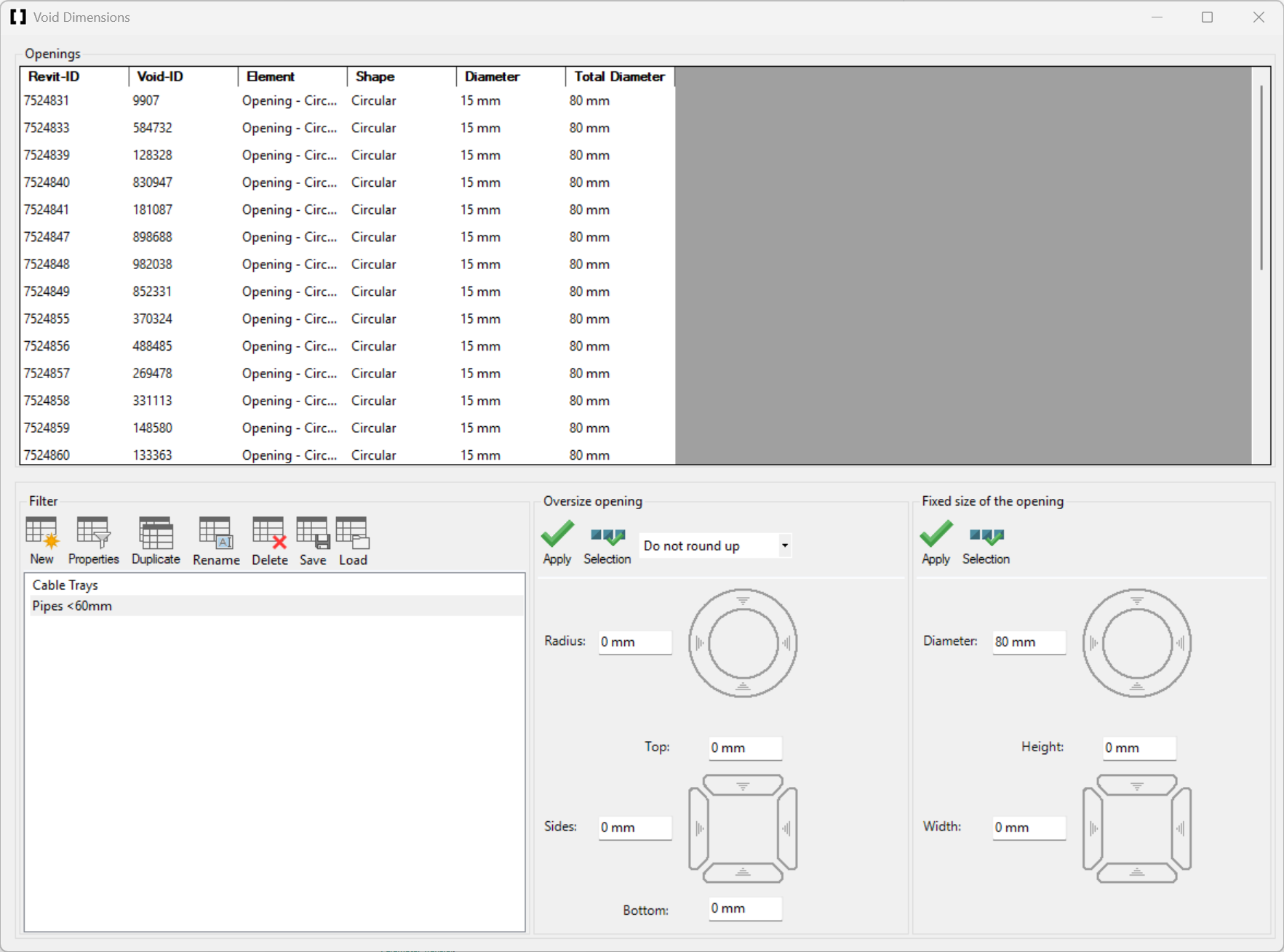
Just like ConVoid Settings, Dimension Void configurations may reference categories or parameters specific to the source project. Verify each configuration after importing.