Advanced Features
In some projects, MEP elements are not modeled in a standard way. Cable trays may stop at the wall surface instead of passing through, or multiple MEP segments may be joined into a single element. ConVoid handles these scenarios automatically.
This chapter also covers the Do not join opening parameter, which lets you create separate openings for each layer of a wall (e.g. insulation and concrete) instead of one combined opening.
Video Tutorial
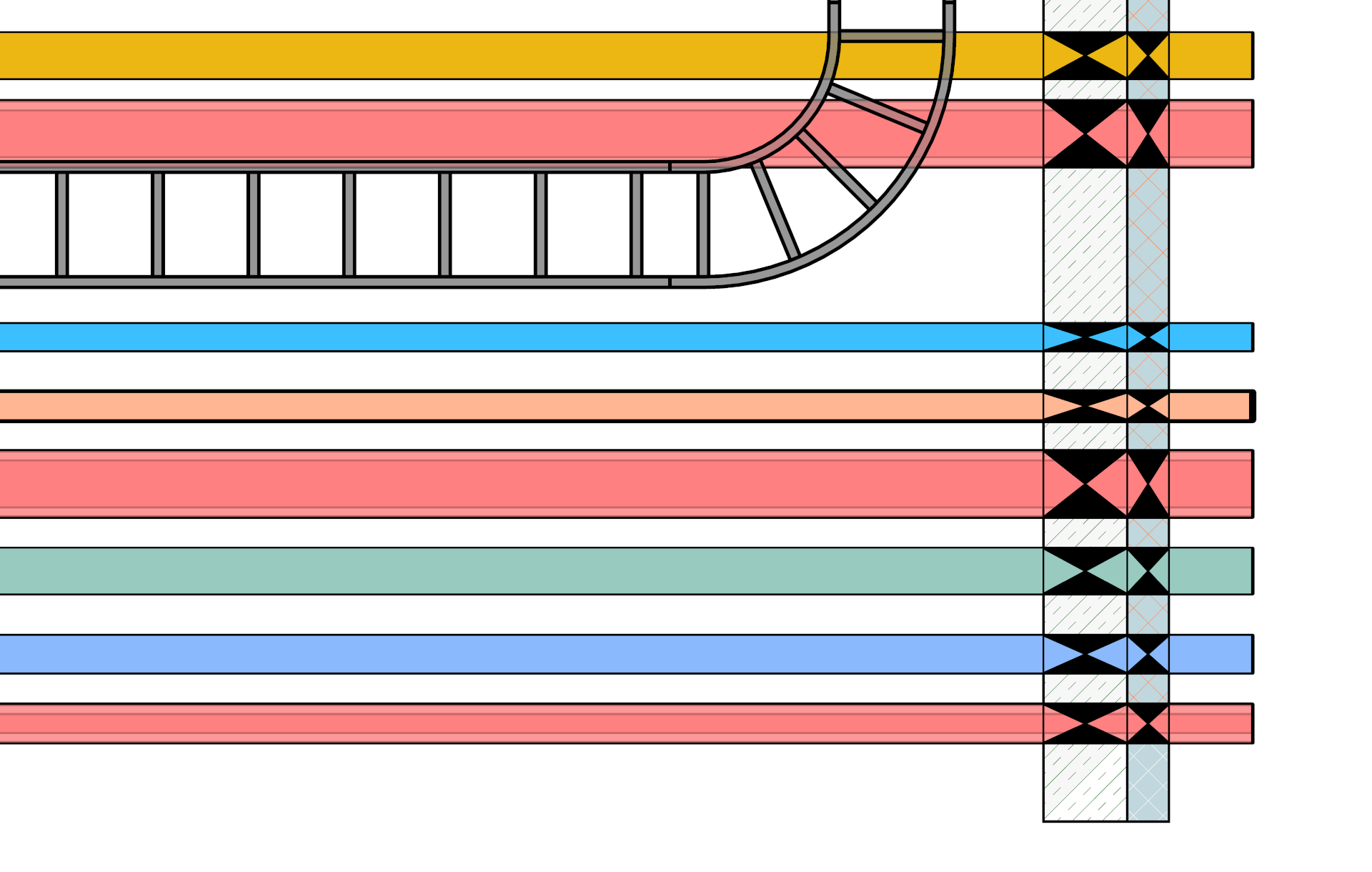
Cable Trays with a Gap
There is no need to model a cable tray through a host element to create an opening. Simply model the cable tray to the exterior and interior surfaces of the host element, and ConVoid will automatically place an opening - even without any intersection with the host.
The gap between the cable tray ends must not exceed 80 cm. If the gap is larger, ConVoid will not create an opening.
Joined MEP Elements
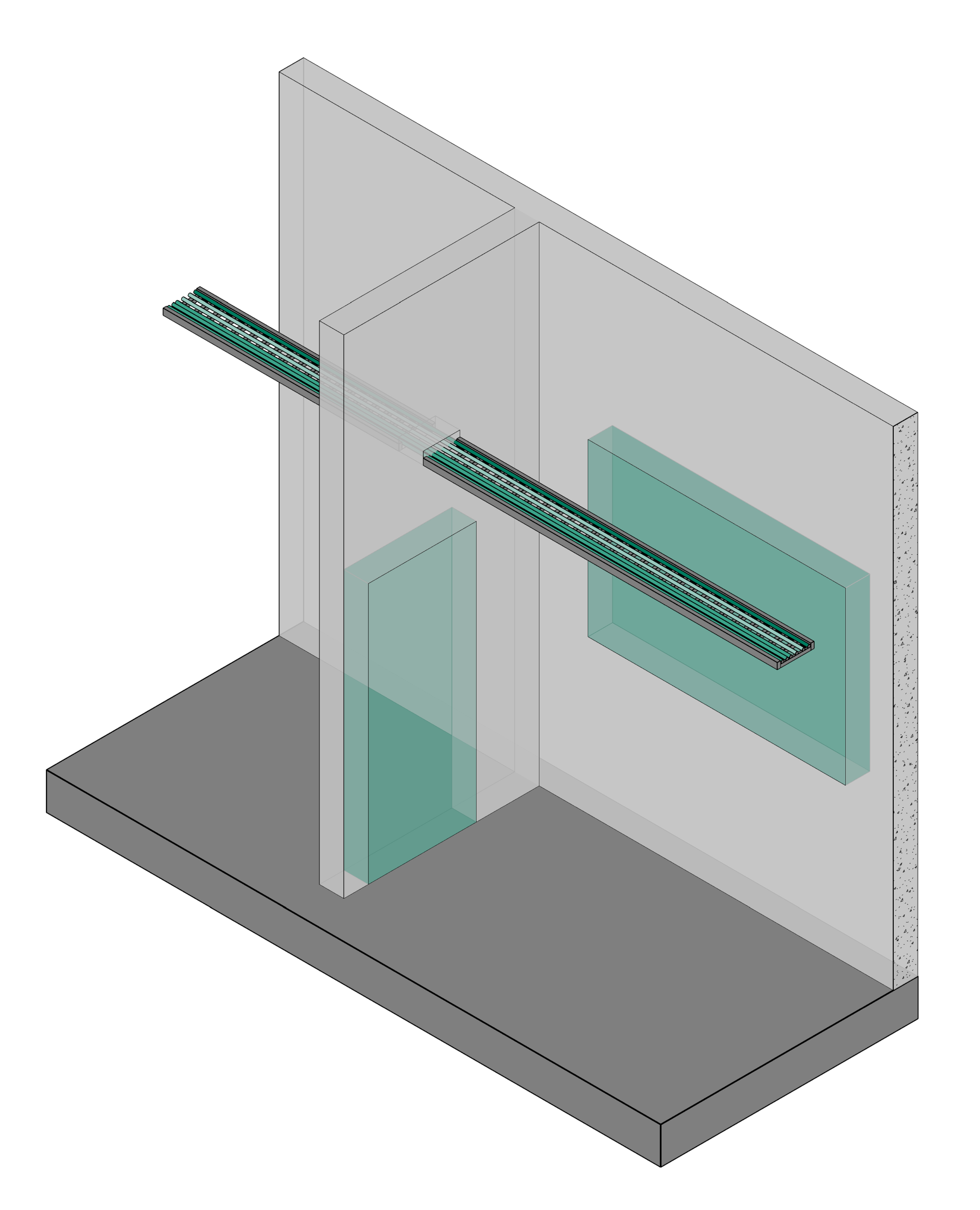
ConVoid supports all 3D elements, even those modeled in an unconventional way. For example, if a cable tray system is created as a single element, ConVoid can still work with it and will accurately place the openings as required.
Do Not Join Openings
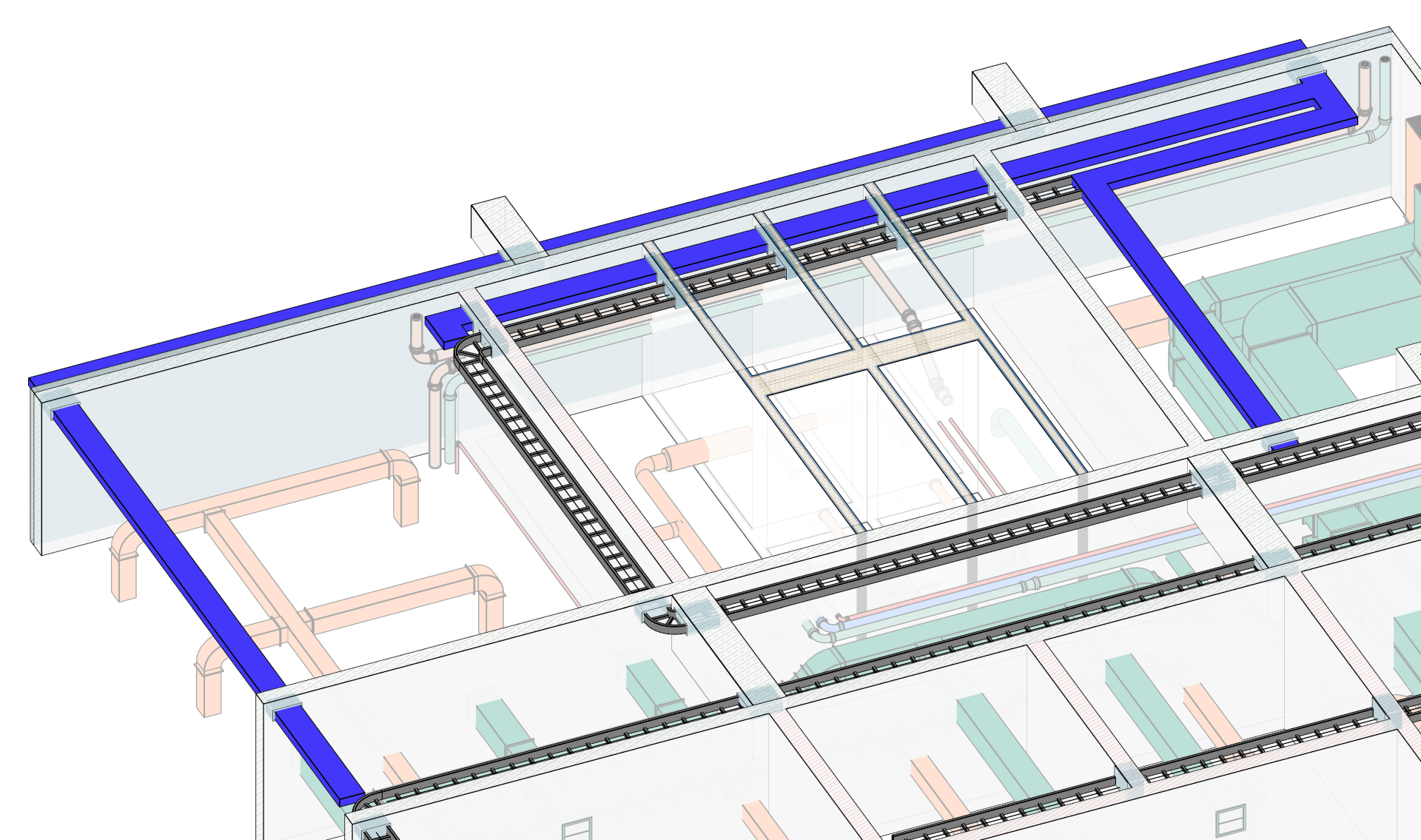
By default, ConVoid creates one combined opening when a reference element passes through multiple wall layers. If your project requires separate openings for each layer (e.g. insulation and concrete), you can enable this with the Do not join opening parameter.
To add the parameter to your project:
- Go to the [Manage] ribbon tab and click [Project Parameters].
- Add a new parameter and select the Conclass Shared Parameter Void file, which can be found in the ConVoid library.
- In the Select Parameter window, choose the parameter group Manager and select the parameter Do not join opening.
- Select the categories of your reference elements and click [OK].
To use the parameter:
- Select the reference element in your model that intersects multiple hosts.
- Activate the Do not join opening parameter (set it to Yes).
- When running ConVoid, it will create separate openings for each host.