Align Openings
Sometimes an opening does not sit flush with a wall edge, floor surface, or another element. The Align feature lets you snap an opening to a selected reference element with one click, so it fits neatly into its surroundings.
Align works with walls, beams, floors, lines, and other element types. It supports linked elements and can be used in both 2D and 3D views.
Video Tutorial
Align Openings with Selected Elements
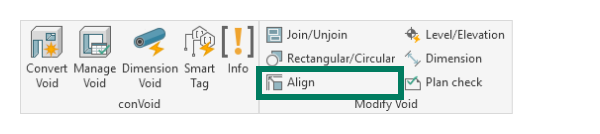
- Go to the conclass tab and click [Align].
- Select an opening.
- Select a reference element (e.g. a floor surface or wall edge) to which you want to align the opening.
- To align more openings, select the next opening followed by its reference element.
- Repeat as many times as needed.
- Press [ESC] to exit the Align tool.