Link Revit and IFC Models
ConVoid detects clashes between linked models and uses them to create or adopt openings. To get started, link all relevant models to your project.
Video Tutorial
- Workflow A: Create Openings
- Workflow B: Adopt Openings
- Workflow C: Create Structural Openings
Project Setup and Linking
Before you begin, decide in which model you want to place the openings: either in your discipline model (e.g. MEP, ARC, or STR model) or in a separate coordination model.
- Workflow A: Create Openings
- Workflow B: Adopt Openings
- Workflow C: Create Structural Openings
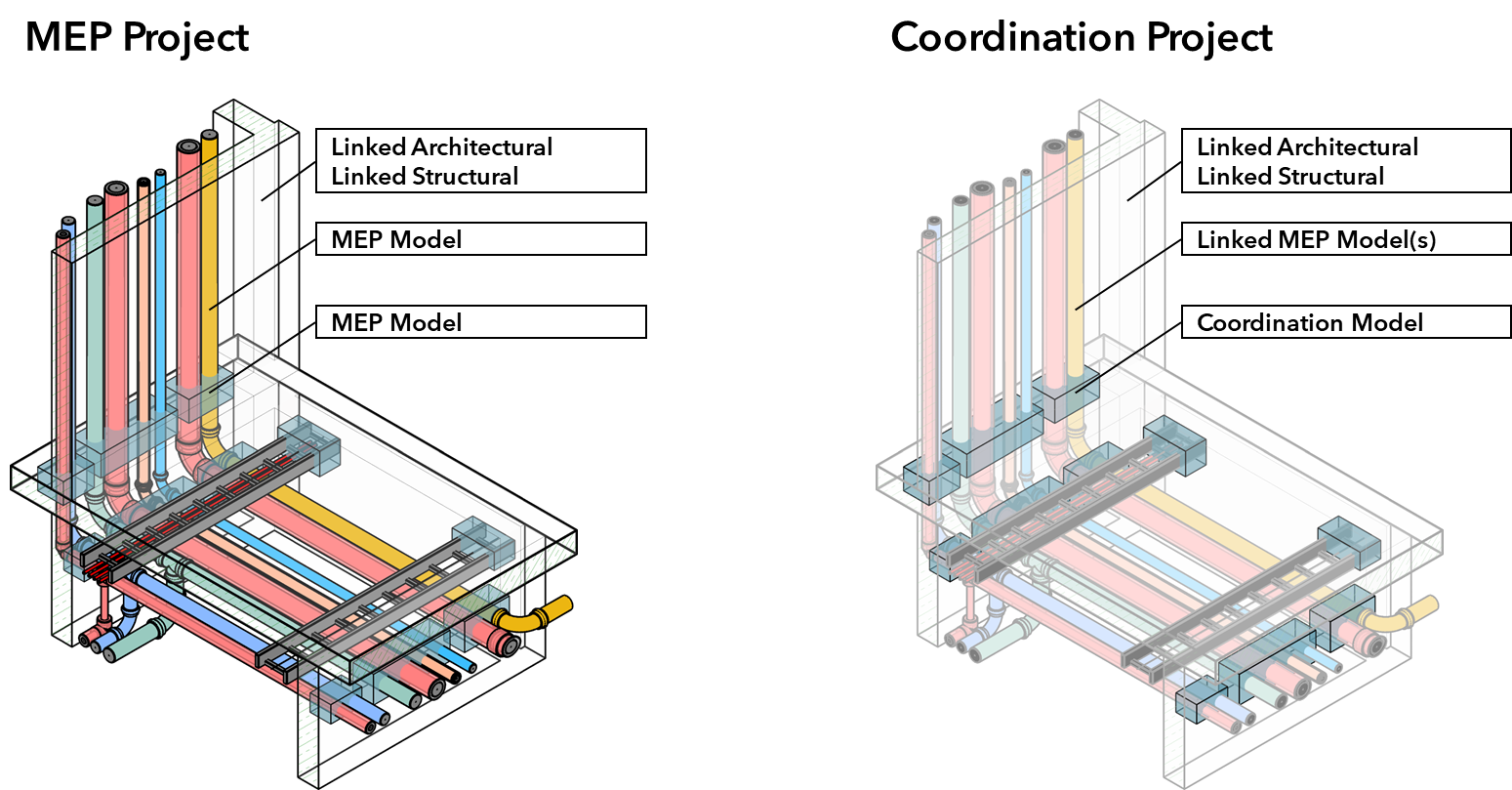
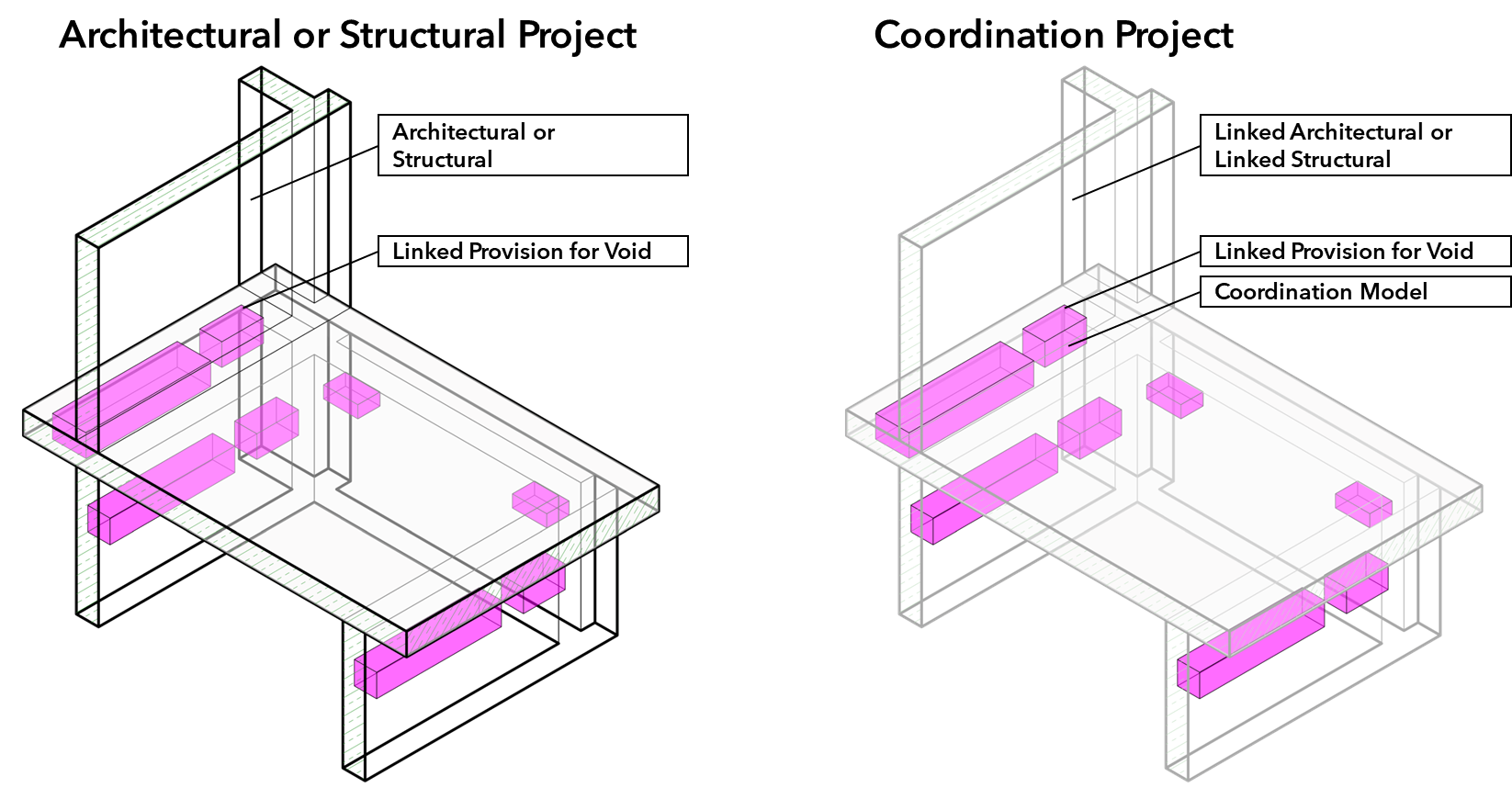
- Structural openings can only be placed in walls of the active project (no linked walls).
The workflow for inserting linked models is the same for all workflows:
- Open the Revit Ribbon Tab [Insert].
- Click on either [Link Revit] or [Link IFC].
- Select and open all models relevant to your workflow, such as MEP, architectural, or structural models.
Do not copy a linked model multiple times within your project (e.g. the same apartment link inserted repeatedly). ConVoid cannot establish unique IDs for reference elements in copied links, so openings cannot be tracked or updated. Instead, create separate file copies (e.g. Apartment_A1.rvt, Apartment_A2.rvt) and link each individually.
Reposition Linked Models
If a linked model has an incorrect position, move and rotate it using standard Revit tools.
When you receive an updated linked model, place it at the exact same position as the previous version. A position change causes ConVoid to detect changes in all openings during the next update.
Working with Linked IFC Models
When you receive an updated IFC model, do not simply reload it. Revit may combine new IFC data with the old cached .RVT file, causing duplicate parameters and geometry issues.
This is the most common cause of IFC-related support issues. Every time you receive an updated IFC:
- Remove the link to the outdated IFC model from your project.
- Delete the .RVT file that Revit created from the old IFC.
- Link the new IFC model.
Skipping step 2 causes duplicate parameters, missing openings, and geometry problems.
Select a linked IFC element and check its parameters. If you see duplicates (e.g. "IfcExportAs" appearing twice), the .RVT cache was not cleaned up. Follow the three steps above to fix this.