Create and Change Your Profile
Your ConVoid profile identifies you to other project participants. Every opening you create, modify, or approve is linked to your profile. Setting it up correctly from the start ensures clear accountability throughout the coordination process.
You must configure your profile when launching ConVoid for the first time in a project.
Video Tutorial
- Workflow A: Create Openings
- Workflow B: Adopt Openings
- Workflow C: Create Structural Openings
Create a Profile
When you launch ConVoid for the first time in a project, the Profile Settings dialog appears automatically. You need to configure four settings:
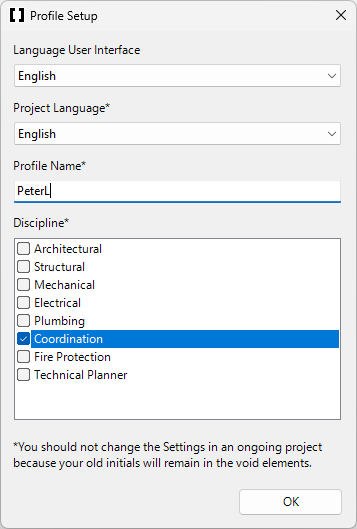
1. User Interface Language
Choose the language for the ConVoid menus and interface. This setting only affects your personal view and does not impact other project participants.
2. Project Language
The project language controls the language used for approval documentation, discipline names, and status labels on openings. This setting is global and applies to all project participants.
If your project documentation is in German but your ConVoid UI is in English, set the Project Language to German. This ensures that approval statuses and discipline names are documented in the language your team expects.
3. Profile Name
Choose a unique name to identify yourself. This name appears on every opening you create, modify, or approve. Use your full name or your company's standard naming convention so that other project participants can easily identify who made changes.
4. Discipline
Select your discipline (e.g. Architecture, Structural Engineering, HVAC, Electrical). This information is stored on every opening you interact with.
ConVoid uses a fixed list of disciplines to ensure consistency across all project participants.
Profile Initials
Once you have set up your profile, ConVoid automatically assigns your initials. These initials appear in the ConVoid Manager toolbar to confirm which profile is active.

Change Your Profile
If you need to modify your profile later, follow these steps:
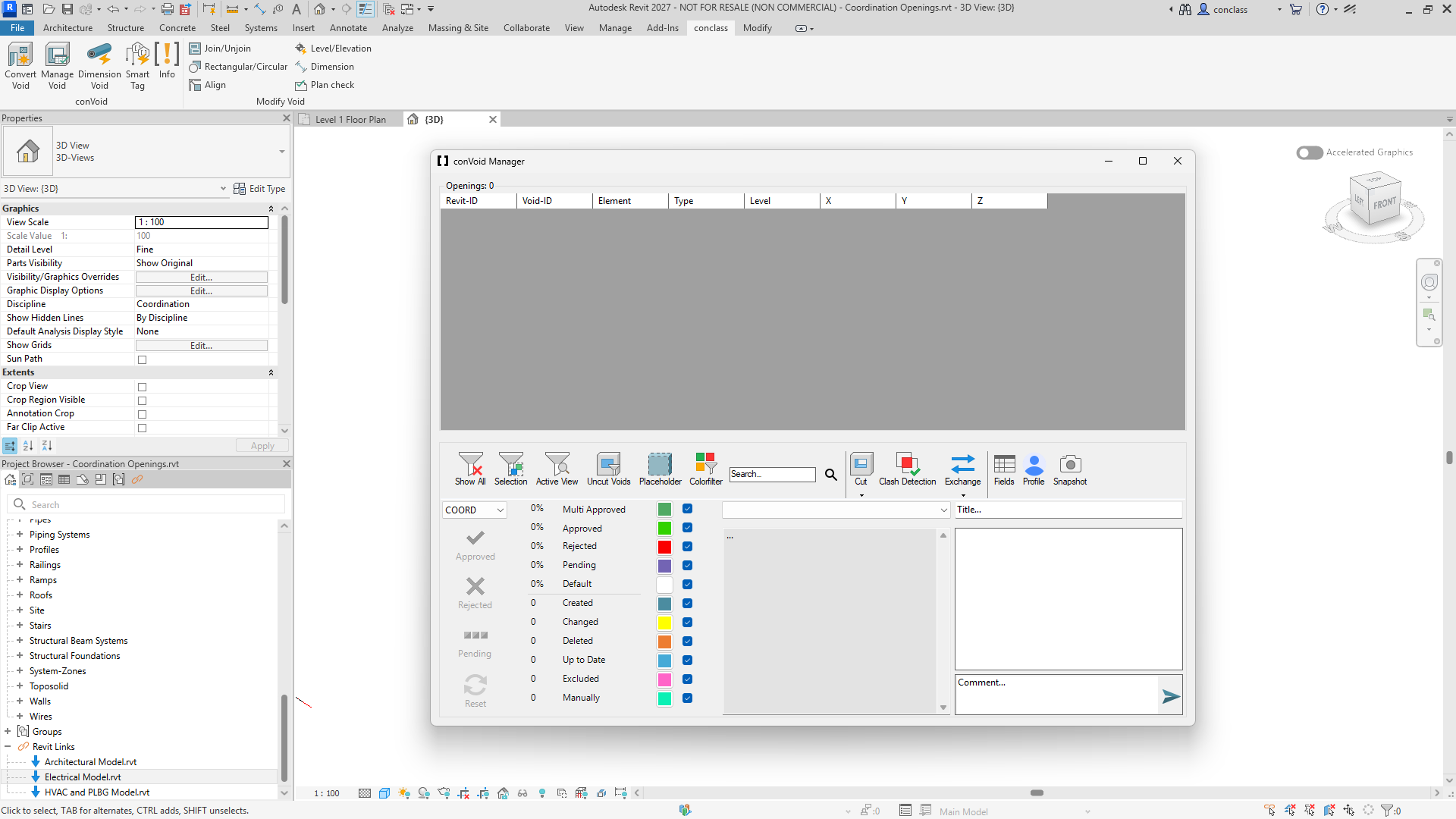
- Go to the Conclass Ribbon Tab in Revit.
- Click on Manage Void.
- Open the Profile section.
- Update your settings as needed and confirm the changes.
Changing your name or discipline mid-project can cause confusion about who created, modified, or approved specific openings. If you must make changes, inform all project participants beforehand.