Exchange with Other Disciplines
Why Exchange Matters
The ConVoid Manager Stand-Alone is built for coordination: project partners review, approve and comment on openings without needing Revit. The Exchange functions move that work (geometry, approvals, comments and snapshots) back to the design teams or onward to other reviewers.
Which format you pick depends on what your partner uses. Find the matching row in the overview below, then jump to the matching section.
Before you export or import, make sure you have:
- A project with at least one model loaded (see Quick Start: Add IFC and BCF Files)
- Issues created and reviewed where applicable (see Make and Review Approvals)
Overview of Exchange Formats
| Format | Geometry | Approvals | Comments | Snapshots |
|---|---|---|---|---|
| CC (ConVoid Project File) | ✅ | ✅ | ✅ | ✅ |
| BCF | ❌ | ✅ | ✅ | ✅ |
| IFC | ✅* | ❌ | ❌ | ❌ |
| frag | ✅ | ❌ | ❌ | ❌ |
| Excel (XLSX) | ❌ | ✅ | ✅ | ❌ |
| CSV | ❌ | ✅ | ❌ | ❌ |
| PDF Report | ❌ | ✅ | ✅ | ✅ |
| HTML Report | ❌ | ✅ | ✅ | ✅ |
* Import only. The Manager is a coordination tool and does not export IFC.
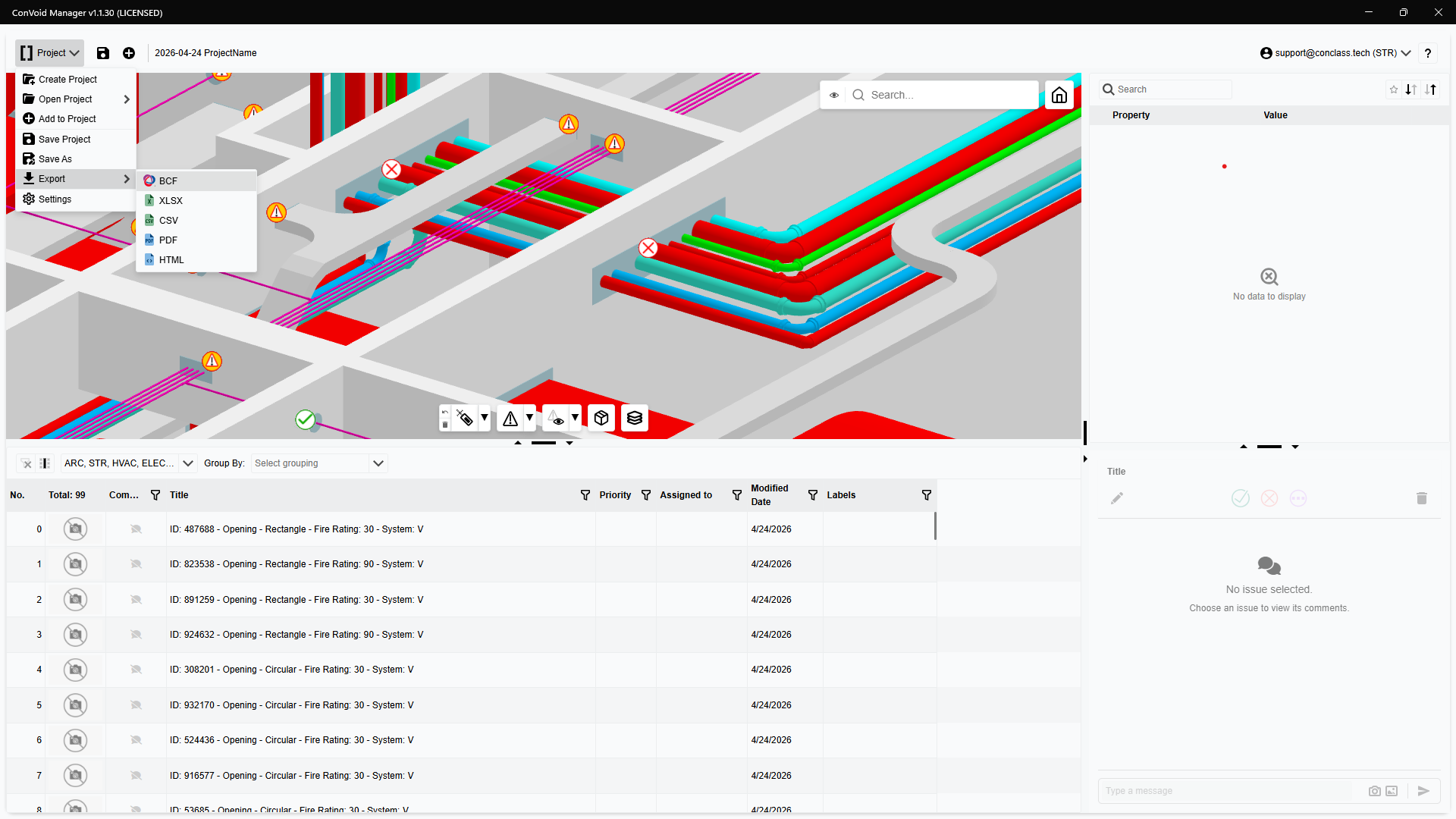
- Partner uses ConVoid: Use CC (full project, including geometry and snapshots) or BCF (lightweight, only issues).
- Partner uses BIM but not ConVoid: Use BCF for issues and IFC for geometry, the open-BIM combination.
- Partner does not use BIM: Use HTML reports. They are read-only but easy to share by email.
- Reporting or data analysis: Use XLSX or CSV.
CC: ConVoid Project File
CC is the native ConVoid format and the only one that carries everything: loaded geometry, approvals, comments and snapshots. Use it to share full projects with both ConVoid Manager (Stand-Alone) and ConVoid for Revit users.
Export CC
The Manager saves your project as .cc automatically when Auto Save is enabled (every 15 minutes). You can also save manually via Project → Save As.
Share the .cc file with your project participants. They can open it in either the ConVoid Manager Stand-Alone or in ConVoid for Revit.
Import CC
Add a .cc file via the file management area in the upper left. Models and issues from the file are merged with what is already loaded in your project.
BCF: BIM Collaboration Format
BCF is the open-BIM standard for issue exchange. Use it when your partner works with another BCF platform (BIMcollab, BIM Track, Solibri, Stabicad).
Export BCF
- Apply filters in the Issue List to limit the export to the issues you want to share. The active filter applies to the export.
- Click Project → Export → BCF Export.
- In the Discipline Approvals section of the export window, choose whether to include all discipline approval labels or only those of your own discipline.
- Review the summary window, which shows the number of issues that will be exported.
- Save the
.bcfor.bcfzipfile.
Configure dynamic BCF titles via Project → Settings → BCF → Title before exporting. Placeholders like #[Name], #[Level], #[Fire Rating] make issues easy to identify in BIMcollab, BIM Track or other downstream platforms.
Import BCF
Add a .bcf or .bcfzip file via the file management area in the upper left. Approvals, comments and snapshots from the BCF are merged into existing issues that share the same IfcGuid.
Partners working with external systems must label according to our BCF Label Guideline.
IFC: Industry Foundation Classes
IFC is the open-BIM standard used to load model geometry into the Manager. The Manager does not export IFC.
Import IFC
Add a .ifc file via the file management area in the upper left. The model loads into the 3D viewer.
All IFC models in a project must use the same units (meters) and share the same origin point. For best compatibility, BCF files should also share that origin. Mixed units or origins lead to misaligned geometry and markups.
The Manager imports IFC files up to 2 GB.
Fragments (by That Open Company)
frag is a lightweight geometry format optimised for fast loading of large models. Use it when an IFC of the same model would be too large or too slow.
Export frag
You can export models by opening the Model Manager at the bottom center of the 3D viewer and clicking the download button.
Import frag
Add a .frag file via the file management area in the upper left. It loads into the 3D viewer like an IFC model and follows the same unit and origin requirements.
XLSX: Excel
Use Excel for reporting and project documentation. The export contains all issue data in a structured format and preserves categories, labels and approval statuses for further filtering, sorting and reporting.
Export Excel
- Set up the Issue List: filter and arrange columns as you want them in the export.
- Click Project → Export → XLSX.
- Save the
.xlsxfile.
The export reflects the columns and filter currently active in the Issue List, so the Excel file matches what you see on screen.
CSV
CSV is a lightweight export of all BCF issue data in a structured format. Use it for analysis, filtering and pipelines into spreadsheets or BI tools.
Export CSV
Click Project → Export → CSV and save the file. The active Issue List filter applies, the same way as for XLSX.
PDF: Report
PDF is for documentation. The export uses a header layout with issues colour-coded by approval status. The exported columns match the columns selected in the Issue List.
Export PDF
- Filter and arrange the Issue List as it should appear in the report.
- Click Project → Export → PDF.
- Save the
.pdffile.
HTML: Interactive Report
HTML is the interactive version of the PDF report. It contains the same project information and attributes, but issue snapshots appear as thumbnails that open in resizable pop-up windows. Use it when you need a shareable report that recipients can open in any browser without ConVoid.
Export HTML
- Filter and arrange the Issue List as it should appear in the report.
- Click Project → Export → HTML.
- Save the file and open it in any browser.