Activate Your ConVoid License
After installing ConVoid, you need to activate a license before you can use it. This chapter covers all license types: free trial, User Based, Multi User (floating), and pool activation for large deployments.
All license types require an internet connection for activation and validation. If your firewall blocks outgoing connections, make sure the required IPs are whitelisted before proceeding.
Trial Version
The trial version starts automatically the first time you launch ConVoid. No license key is needed. You get full access to all features for 14 days.
Simply open Revit and click any tool in the [conclass] ribbon tab. The trial activates automatically.
If you are prompted for a license key instead of the trial starting automatically, you likely have an older version installed. Uninstall ConVoid, download the latest version, and reinstall. The trial will then start correctly.
User Based License
A User Based license assigns seats to specific people in your organization. Each team member signs into ConVoid with their personal Conclass account and can use the software on any computer — but only one device at a time per person.
How it works
- The administrator signs into the License Manager and assigns a seat to each team member by entering their email address.
- Each team member creates a Conclass account using the email address that was assigned to them.
- They sign into ConVoid using that account — no license key entry required.
ConVoid for Revit
- Start Revit and ensure you are connected to the internet.
- Open a project.
- Go to the ribbon tab [conclass].
- Click on [Info].
- The [Sign in] window will appear allowing you to enter your Conclass account email and password.
Once signed in, ConVoid validates your seat with the license server and unlocks all features available to your account.
ConVoid Manager (Stand-Alone)
- Start ConVoid Manager and ensure you are connected to the internet.
- Sign in with the same Conclass account you use for ConVoid for Revit.
Your User Based license covers both ConVoid for Revit and ConVoid Manager from a single seat, you do not need to enter a license key, and both applications can run simultaneously on the same device.
Each user can sign into ConVoid from any number of computers, but only one device at a time per person. If you sign in on a second computer, the first session is released. All ConVoid applications can run together on the same device without consuming additional seats.
Multi User License
A Multi User (floating) license allows a set number of simultaneous users. The license is shared from a pool — any team member can use it, up to the licensed number of concurrent users.
Once you have purchased a license and received your license key via email, follow these steps:
ConVoid for Revit
- Start Revit and ensure you are connected to the internet.
- Open a project.
- Go to the ribbon tab [conclass].
- Click on [Info].
- Click on [Activate license].
- Enter your license key and click [OK].
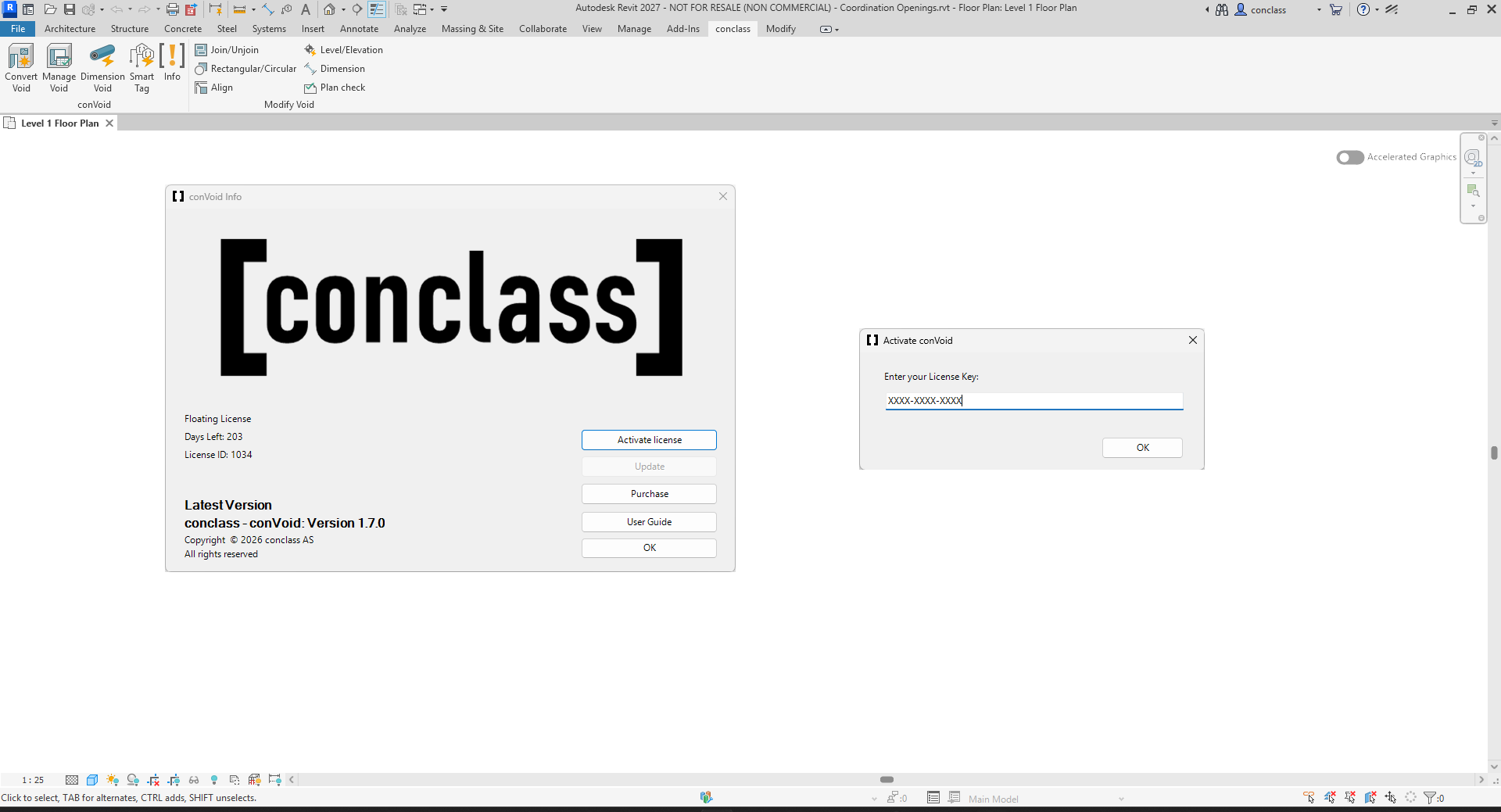
ConVoid Manager (Stand-Alone)
- Start ConVoid Manager and ensure you are connected to the internet.
- Create an account at app.conclass.com.
- Log in with your new account.
- Enter your license key and click [OK].
License Manager
A web-based license manager is available at app.conclass.com. Create an account there to manage your licenses, monitor active users, release unused seats, and block devices.
A floating license allows a set number of simultaneous users. The license is locked when a user starts working with ConVoid and automatically released after 2 hours of inactivity or when Revit is closed. Note that ConVoid in Revit and the ConVoid Manager (Stand-Alone) each occupy a separate license seat.
Pool Activation
Pool activation applies to Multi User (floating) licenses only. User Based licenses don't require this step — each team member signs into their own Conclass account, and no license file needs to be copied between machines.
Pool activation lets IT administrators deploy the license key to multiple machines without manual entry on each device. This is especially useful when combined with silent installation.
After activating ConVoid on one machine, the license file is stored at:
C:\Users\[YourUsername]\AppData\Roaming\conclass\licensekey.skm
To activate additional machines:
- Copy the
licensekey.skmfile from the activated machine. - Place it at the same path on each target device:
C:\Users\[Username]\AppData\Roaming\conclass\licensekey.skm - ConVoid will automatically read the license key on startup.
Include the file copy step in your silent install script so that installation and activation happen in one pass.
IP Whitelisting
If your organization uses a restrictive firewall, ConVoid may not be able to reach the license server. In that case, whitelist the following IPs on port 443:
23.102.21.21240.113.70.5920.82.170.150
If ConVoid cannot connect to the license server after installation, license activation and the trial version will not work. Check with your IT department whether these IPs are accessible before proceeding to activation.